

Why I think point-in-time restore is the most underrated thing in Windows 365
Every Windows 365 Enterprise Cloud PC takes snapshots of itself, all day long, without an agent, a backup product or a storage account of your own. When something goes wrong inside that Cloud PC, you pick a moment from before the problem and the whole disk goes back to that moment. Apps, settings, local files, the lot.
In a lot of tenants those settings have never been touched. The restore interval sits at whatever it was on day one, users can’t restore their own Cloud PC, and nobody has ever run a bulk restore to see how long it takes. Then a bad update or a ransomware alert lands, and the team finds out about these options in the middle of an incident.
The principle I’ll keep coming back to in this post is simple: your restore interval is your RPO. Whatever you set there decides how much work your users lose on the worst day. So it’s a decision you make on purpose, per group of users, and not a default you inherit.
Below is the order in which I set it up, from understanding the restore points to the runbook you hope you never need.
What broke decides what you use
Point-in-time restore is one tool in a small set, and it helps to know where its edges are before you need it.
| What broke | What I use | Who starts it |
|---|---|---|
| One Cloud PC: a bad app install, a broken profile, a user who deleted the wrong folder | Point-in-time restore of that Cloud PC | Admin, or the user if you allow it |
| Many Cloud PCs: a bad update, an agent that crashes at boot, malware | Bulk restore to a moment before the problem | Admin |
| An availability zone in your region | Restore, which lands the Cloud PC in another zone of the same region | Admin |
| A whole Azure region | Cross region disaster recovery or Disaster Recovery Plus (paid add-ons) | Admin activates |
| The Cloud PC itself is beyond saving, every restore point included | Reset or reprovision | Admin, or the user if you allow it |
| A licence that expired by accident | Restore from the retention snapshot | Admin, within 28 days |
| The user’s physical device | Windows 365 Reserve, not a restore | Admin or user |
The zone row surprises people. Microsoft documents that if the original infrastructure is unavailable, a restore automatically places the Cloud PC on alternate infrastructure in the same region, including a different zone. So for a zone outage you don’t need an add-on, only an admin who knows to press restore.
The trade-off is always the same. Restore keeps the Cloud PC and loses recent local work. Reset keeps nothing. The DR add-ons protect against losing the region, but they build on the same restore points, so a badly chosen interval hurts you there too.
Step 1: Understand what you actually have
A Cloud PC keeps three kinds of restore points, and they behave quite differently.
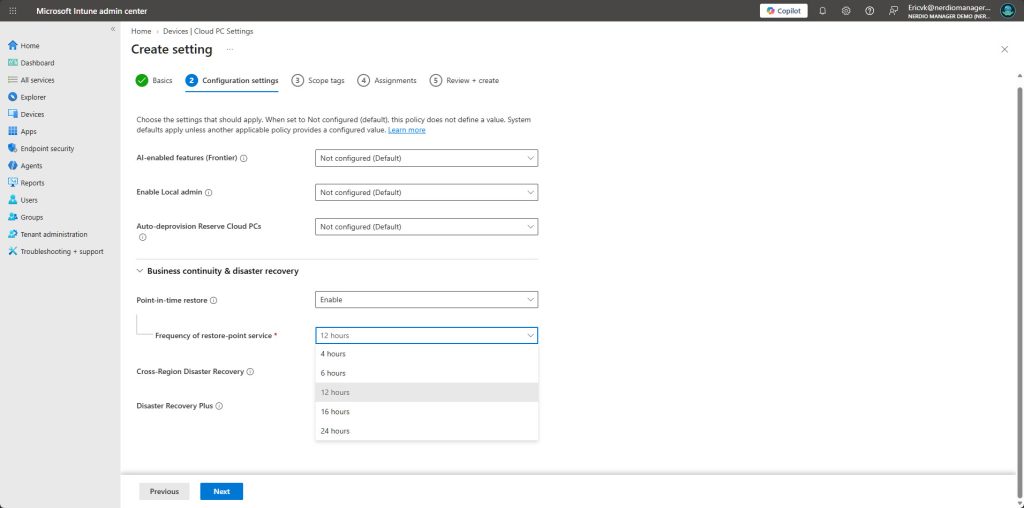
Short-term restore points are the ones you configure. Windows 365 takes one every 4, 6, 12, 16 or 24 hours and keeps the last ten. When a new one arrives, the oldest drops off. The default interval is 12 hours.
Long-term restore points come on top of that. There are four of them, one every seven days, so roughly a month of weekly history. You can’t change them.
Then there’s the manual restore point. Only an admin can create one, a Cloud PC can have just one at a time, and a new one overwrites the old. If you leave it alone it expires after about 28 days. This is the one people forget, and it’s the one I use most: before an in-place upgrade, a big app change or anything else I might regret.
Because there are always ten short-term points, the interval decides two things at once: how far back you can go, and how much you lose when you restore.
| Interval | Short-term history (10 points) | Worst-case loss on restore |
|---|---|---|
| 4 hours | 40 hours | 4 hours of work |
| 6 hours | 60 hours, 2.5 days | 6 hours |
| 12 hours (default) | 120 hours, 5 days | 12 hours |
| 16 hours | 160 hours, about 6.5 days | 16 hours |
| 24 hours | 240 hours, 10 days | a full day |
That’s the tension in one table. A short interval means little data loss, but if you only discover a problem after two days, a 4-hour setting has already rolled past the last good point and you’re down to the weekly ones. A long interval gives you more history, at the cost of more lost work.
There’s one more type that almost nobody knows about. When a Windows 365 Enterprise licence expires, Windows 365 keeps a retention snapshot for 28 days. Renew the same SKU, make sure the provisioning policy and the user assignments still exist, and you can restore the new Cloud PC from that snapshot. It doesn’t apply when someone removes the licence from the user on purpose, only when it expires.
Step 2: Set the interval per persona
One interval for everybody is how most tenants end up on the default. I make three settings and assign each to a user group. You find them in the Intune admin center under Devices, Windows 365. Microsoft’s documentation still calls this User settings, while newer tenants show it as part of the Cloud PC settings, but the two options are the same: Allow user to initiate restore service, and Frequency of restore-point service. I use the prefix CPS- for these settings so they sort together.
CPS-Restore-Standard
The default for most users. Five days of short-term history is usually enough to catch a problem, and letting users restore themselves takes tickets off the service desk.
- Allow user to initiate restore service: On
- Frequency of restore-point service: 12 hours
- Assignment: your general Cloud PC user group
CPS-Restore-Critical
For teams where half a day of lost local work really hurts, such as operations, trading or the people running your admin tier. A short interval keeps the loss small. User restore stays off, because I want the service desk to pick the restore point consciously instead of a stressed user clicking the newest one.
- Allow user to initiate restore service: Off
- Frequency of restore-point service: 4 hours
- Assignment: the group with your critical roles
CPS-Restore-LongHistory
For Cloud PCs where problems tend to show up late, like developers and test machines. Ten days of daily points gives you room to go back to before a change that only broke something days later.
- Allow user to initiate restore service: On
- Frequency of restore-point service: 24 hours
- Assignment: your developer group
Two things to keep in mind. First, make sure a user only falls into one of these settings, so you always know which interval applies. Second, if you use cross region disaster recovery or Disaster Recovery Plus, they’re configured in the same setting and the point-in-time restore values apply to them too. For cross region disaster recovery that means the interval you pick here is effectively its RPO, plus a few minutes of replication.
Step 3: Cover what a restore throws away
A restore is a full disk rollback. Microsoft is clear that everything changed after the restore point is lost: data, documents, installed apps, settings and downloads. Data in cloud services like OneDrive survives. That one sentence is the reason I never configure restore points without also moving user data off the local disk.
CFG-W365-OneDrive-KFM
Known Folder Move puts Desktop, Documents and Pictures in OneDrive. After a restore, the user’s files are simply there, at their latest version, no matter how old the restore point is. Without it, every restore means a conversation about a lost spreadsheet.
- Settings catalog > OneDrive > Silently move Windows known folders to OneDrive: Enabled, with your tenant ID
- Settings catalog > OneDrive > Prevent users from redirecting their Windows known folders to their PC: Enabled
- Assignment: your Cloud PC device group
The second risk is less visible: credentials that live on the Cloud PC and change over time. Microsoft warns that rolling passwords, secrets, certificates and keys that changed after the restore point can break the things that depend on them. The best-known example is the machine account password of a hybrid joined Cloud PC. Active Directory changes it every 30 days by default, and if you restore to a point with the old password, the Cloud PC can no longer sign in to the domain.
That’s one more reason I build new Cloud PCs as Entra joined. The machine account password problem only applies to hybrid joined Cloud PCs. If you have to stay hybrid, always pick the newest restore point that is still clean, because Microsoft notes the risk of password conflicts grows with the time between the restore point and now. And keep in mind that in rare cases, when every point holds outdated credentials, a reset is the only way out.
Local certificates, tokens of line-of-business apps and anything else that rotates on the device itself can hit the same problem. Test a restore of an older point on a Cloud PC with your real app set before you rely on it.
Step 4: Running a restore
There are three ways to start a restore, and each has its place.
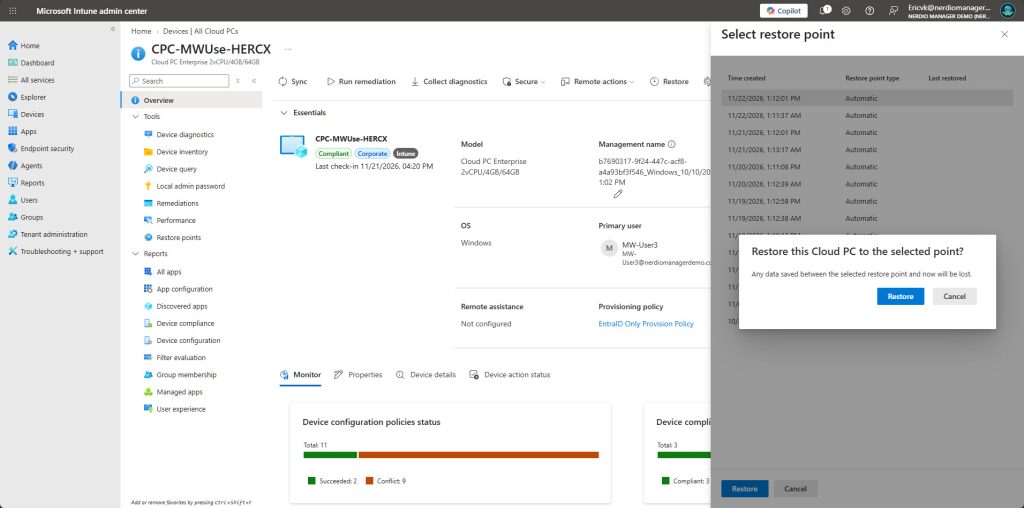
A single Cloud PC, by an admin. In Intune go to Devices, Windows 365, All Cloud PCs, open the Cloud PC and choose Restore. You get the list of restore points and pick one. Unhealthy snapshots are marked with a warning icon. You can still use them, but they have a lower chance of restoring successfully, so I only pick one when there’s nothing healthy left in the window I need. While it runs, the Cloud PC shows as Restoring for both you and the user.
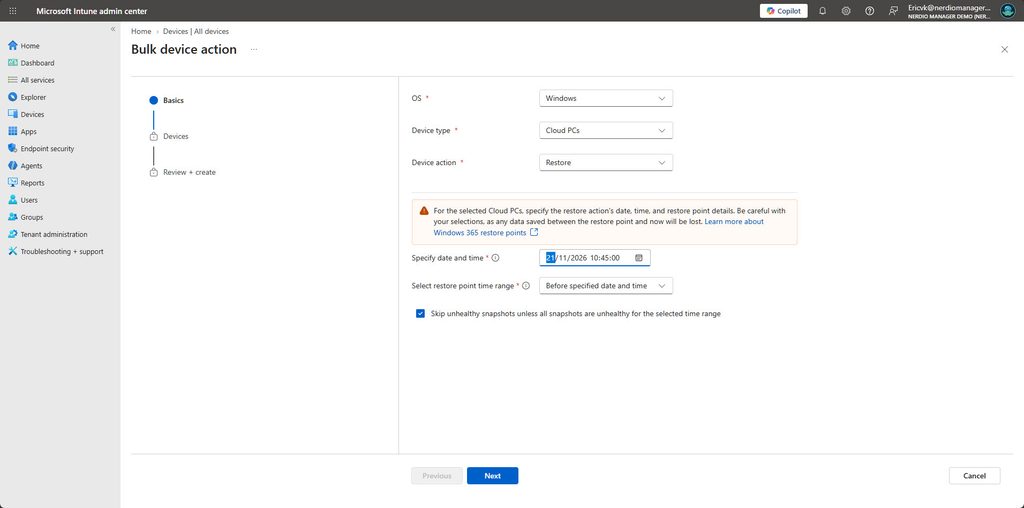
Many Cloud PCs at once. This is the one that turns a bad morning into a manageable one. Go to Devices, All devices, Bulk Device Actions and choose OS Windows, device type Cloud PCs and the action Restore. You give it a date and time, and then one of three options: the closest point before that time, the closest after, or whichever is closest. For a bad update or malware I always choose before. Also tick Skip unhealthy snapshots unless all snapshots are unhealthy, so each Cloud PC uses a healthy point if there’s one in range. A bulk action handles up to 5,000 Cloud PCs at a time.
The user restores their own Cloud PC. With user restore allowed, the user opens their Cloud PC in Windows App or on the web, chooses Restore from the menu on the Cloud PC card, confirms and picks a point. Microsoft’s user guidance is clear that the Cloud PC is unavailable until the restore finishes and that it can’t be undone. For a user who broke their own Cloud PC on Friday afternoon, this is faster than any ticket.
Whatever the route, have the user sign in right after the restore. Microsoft recommends exactly that, and if the user can’t connect or something behaves oddly, restore again from a more recent point.
Before any risky change I also create a manual restore point, singly or as a bulk action, called Create Cloud PC manual restore point. Up to 5,000 Cloud PCs in one go. It costs nothing and it means your fallback is from five minutes ago instead of twelve hours ago.

Step 5: Copy restore points out for forensics and off-boarding
This is the part of point-in-time restore that almost nobody uses, and I think it’s the most valuable. You can share a restore point to an Azure storage account. Windows 365 creates a folder with the name of the Cloud PC and puts a VHD copy of its disk in it.
Microsoft gives several reasons to do this. The one I care about most is forensics. When a Cloud PC is compromised, the instinct is to restore it straight away. That destroys the evidence. Share the current state first, then restore, and your security team can investigate the disk while the user is already working again.
Off-boarding is the other everyday case. Before a leaver’s Cloud PC is deprovisioned, share a restore point and the disk is kept for as long as your retention policy says, instead of disappearing with the licence.
Storage account for shared restore points
The storage account holds complete copies of user disks, so I treat it like any other store of sensitive data.
- A dedicated storage account, only for shared Cloud PC restore points
- Built to Microsoft’s requirements for storage accounts used with Windows 365, and check those before you add network restrictions, because Windows 365 has to be able to write to it
- Access limited to the security team and the people who run off-boarding, nobody else
- An access tier that matches how long you keep the copies: hot for an active investigation, cooler tiers for long-term retention
- A lifecycle rule that deletes copies once your retention period ends
To share a single point, open the Cloud PC in Intune, go to its restore points and choose Share on the point you want. In bulk it’s the device action Share Cloud PC restore point to storage, with the same before, after or closest options as a bulk restore. Keep batches under 3,000 restore points per storage account, because larger batches can time out. And when you create a manual restore point you can tick Create new restore point for share, which captures and copies the current state in one action.

Step 6: Decide who may press the button
A restore throws away hours of somebody’s work, and a shared restore point is a full copy of their disk. Both deserve the same thought you give to any other powerful admin action.
For admins, Windows 365 has the Windows 365 Administrator role in Entra ID and the Cloud PC Administrator and Cloud PC Reader roles in Intune. Cloud PC Administrator can do everything in the Windows 365 area, which is more than a service desk needs. My approach is a custom Intune role for the service desk with only the remote tasks they use day to day, with restore in it and sharing left out. Sharing stays with the security team, who also need access to the storage account in Azure. Check the exact permissions in the custom role editor of your own tenant, because the list grows over time.
If you run separate teams per country or business unit, add scope tags to those roles. A service desk in one country then only sees, and can only restore, the Cloud PCs it’s responsible for.
For users, the switch is the Allow user to initiate restore service option from step 2. Everyone in a group assigned to that setting can restore their own Cloud PC, so the group assignment is your control. I leave it off for admin and critical roles and on for everyone else.
Finally, make sure restores are visible afterwards. Admin-started restores, bulk actions and shares are recorded as remote actions in Intune, and a monthly look at who restored what is a quick way to spot a team that needs help, or a restore that shouldn’t have happened.

Gotchas worth knowing before you need them
Most of these only show up during a real incident, which is exactly the wrong moment to learn them.
- Only one manual restore point per Cloud PC. A new one overwrites the old, and a bulk creation overwrites the existing manual points of every selected Cloud PC. If you deliberately kept a manual point as a known good state, the next routine bulk action quietly replaces it.
- A restore into another zone needs capacity there. Microsoft notes that point-in-time restore to an alternate zone depends on the capacity of that zone, and that Disaster Recovery Plus exists precisely because it reserves capacity. In a big outage, everyone restores at the same time.
- Bulk actions take user groups. When you pick Cloud PCs for a bulk action through a group, it must be a user group, not a device group. Prepare those groups now so you don’t build them under pressure.
- The retention snapshot only exists when a licence expires. Remove a licence from a user on purpose and there’s no snapshot to fall back on. Renewing an expired licence only helps within 28 days and with the same SKU.
- Hybrid joined Cloud PCs and old restore points don’t mix. The machine account password rotates every 30 days, and a restore to a point with the old password breaks the domain sign-in. The older the point, the bigger the risk.
- A restart loop on older Cloud PCs. Cloud PCs provisioned before July 2022 that use attack surface reduction rules, or third-party tools that block the language install script, can end up in a restart loop after a restore or resize. Microsoft’s workaround is to put those policies in audit mode and run
Remove-DSCConfiguration -Stage Pending,Current,Previous -Verbosein an elevated session. - Flex in shared mode is a different story. Shared Cloud PCs are built so that every session starts clean. Point-in-time restore is a tool for dedicated Cloud PCs, so don’t count on it for your shared pools.
- A restore can’t be undone. If you picked the wrong point, the work after it is gone. When in doubt, share the current state to storage first, then restore.
Step 7: Test it and write the runbook
A restore you’ve never tried is a hope, not a plan. I run this test once after setup and then twice a year, on two test Cloud PCs with the same app set as the users who matter most.
- Check that both test Cloud PCs fall under the right restore setting, and wait until at least two short-term restore points exist.
- Put one file in OneDrive and one file only on the local disk. Note the time.
- Break the Cloud PC on purpose: remove an app, change a setting, drop a file called
INCIDENT.txton the desktop. - Restore the first Cloud PC as an admin, choosing the point before your note. Time how long it takes from start to the user being able to sign in again.
- Restore the second one as the user, from Windows App or the web, to test the self-service path and what the user sees.
- Check the result: app back,
INCIDENT.txtgone, OneDrive file intact, and the local file you made after the restore point gone. That last one is your RPO made visible, and it’s the moment people suddenly care about Known Folder Move. - Run a bulk restore on both with Skip unhealthy snapshots selected, so the team has done it once before it matters.
- Share a restore point to the storage account and check that the VHD arrives.
Then turn what you learned into a runbook of one page. Mine answers these questions:
- Which restore interval applies to which group
- Who decides on a bulk restore, and who may start one
- Which point in time to restore to when nobody knows exactly when it broke
- What users are told while their Cloud PC shows Restoring
The third one is the hardest in the middle of an incident, so write the rule down now. Pick the newest point that is certainly from before the problem, and restore again from an older one if the first attempt still shows it.

Closing thoughts
Point-in-time restore is already running in your tenant, whether you configured it or not. What turns it into something you can count on is the work around it. The interval per group decides how much people lose, and OneDrive decides whether that loss actually hurts. A team that has run a bulk restore once will do it calmly when it counts, and sharing a compromised disk before you restore it keeps the evidence your security team needs.
If you only have half an hour, do two things. Check which restore interval your most critical users are on and change it on purpose, and make a manual restore point before the next change you’re nervous about. The rest can follow once you’ve seen a restore work with your own eyes.